← Back to Home
📖 Tutorial

How to Use Make It Polite

Learn how to transform your messages into polished, professional text in seconds.

1

Choose a Tone

Tones define how your text will be transformed. Each tone has a unique style and purpose.
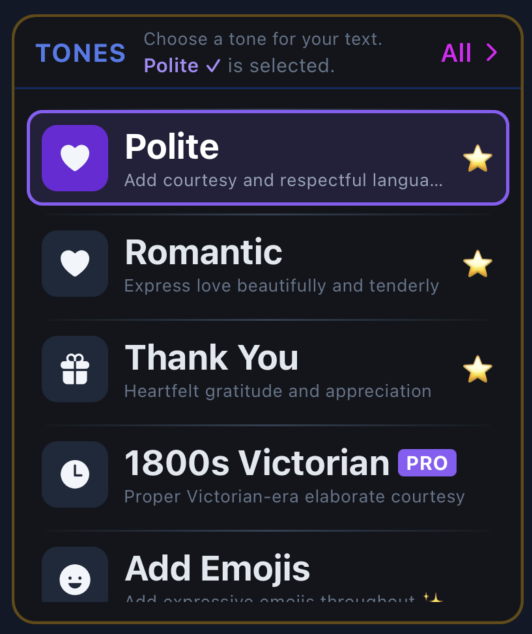
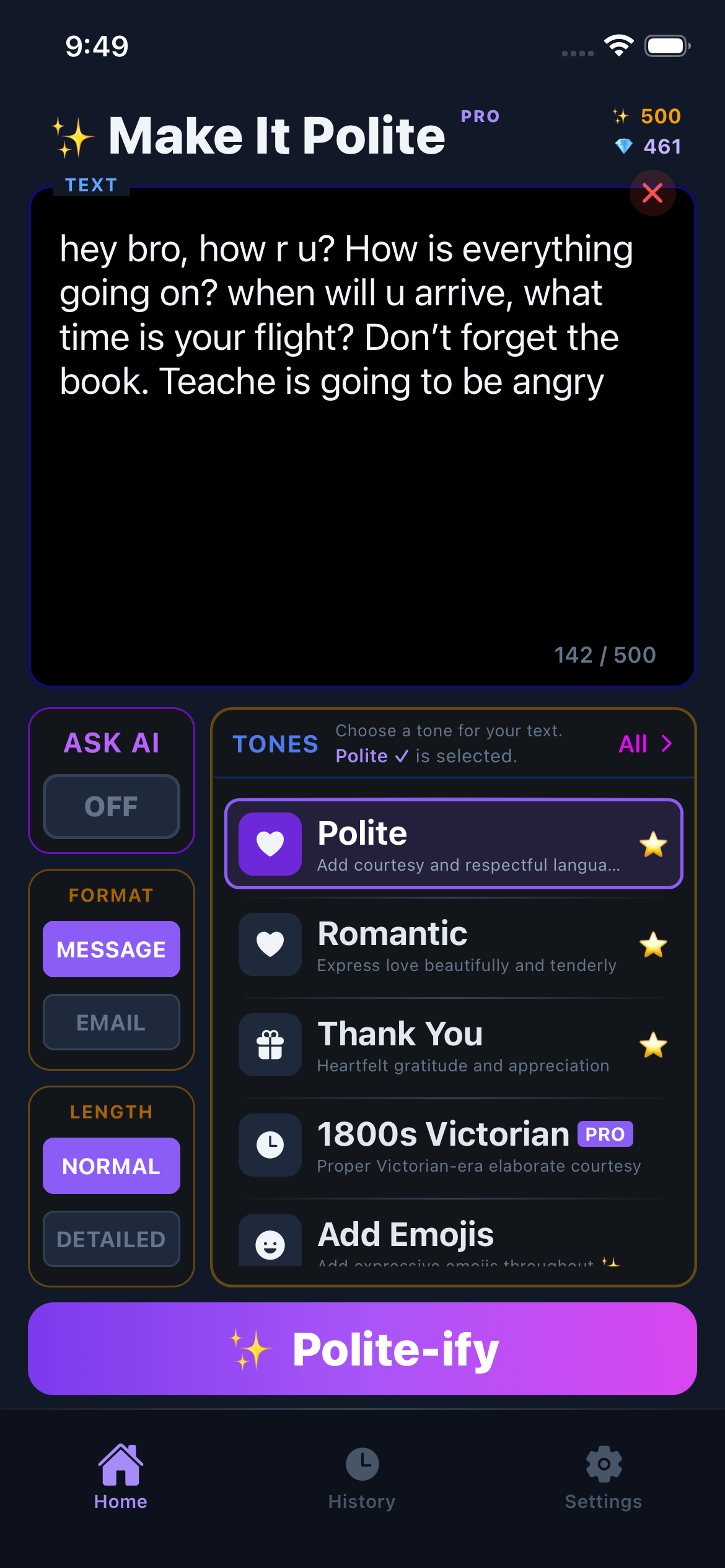
Tone Selection

Tap on a tone to select it. Star icon adds to favorites.

  • 💜 Polite – Add courtesy and respectful language
  • 🔧 Fix Grammar – Correct spelling and grammar errors
  • 💼 Formal – Professional business communication
  • 😊 Friendly – Warm, casual and approachable
💡 Tip

Tap "All >" to see all available tones organized by category. Upgrade to Pro for access to all tones!

Example: Polite Tone
"send me the files"
"Could you please send me the files when you have a moment? I would greatly appreciate it."
2

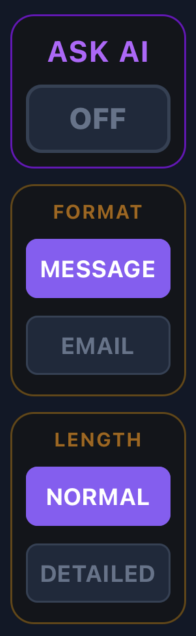
Select Format

Choose the output format based on how you'll use the text.

Format Selection

Toggle between Message and Email formats.

Format Best For Structure
Message Chat, SMS, Quick replies Short, direct text
Email Professional emails Greeting + Body + Closing
📧 Email Format Includes

Proper greeting (Dear/Hello), organized body paragraphs, and professional closing (Best regards, etc.)

3

Set Length

Control how detailed the output should be.

Length Description Use When
Normal Concise and to the point Quick messages, casual chats
Detailed Expanded with more context Important emails, formal requests
⚡ Detailed Power (Settings)

When using Detailed mode, you can adjust the "Detailed Power" slider (1x-10x) in Settings to control exactly how much the AI expands your text.

Ask AI Mode

Instead of transforming existing text, let AI generate new text from your instructions!

💡 What's the difference?
Normal: You write text → AI transforms it
Ask AI: You describe what you want → AI writes it for you
📝 How to Use

1. Toggle ASK AI to ON
2. Describe what you want (e.g., "Write a thank you note for my boss")
3. Select your preferred tone
4. Tap Polite-ify to generate!

📌 Note: In Ask AI mode, Format and Length options are disabled. The app automatically uses Message format and Detailed length with default power unless you specify otherwise.
Example Instructions:
  • "Write an apology email to my teacher for being late"
  • "Create a birthday message for my mom"
  • "Draft a professional follow-up after a job interview"
4

Generate Text

Enter your text and let AI transform it.

Home Screen

Type your text, select options, and tap "Polite-ify"

  • 1️⃣ Type or paste your text in the input box
  • 2️⃣ Select your preferred tone
  • 3️⃣ Choose format (Message/Email) and length
  • 4️⃣ Tap the ✨ Polite-ify button
💡 Tip

Each generation costs 1 credit. The character counter shows your input limit (Free: 200, Basic: 250, Pro: 500, Pro+: 1000 chars).

5

View Results

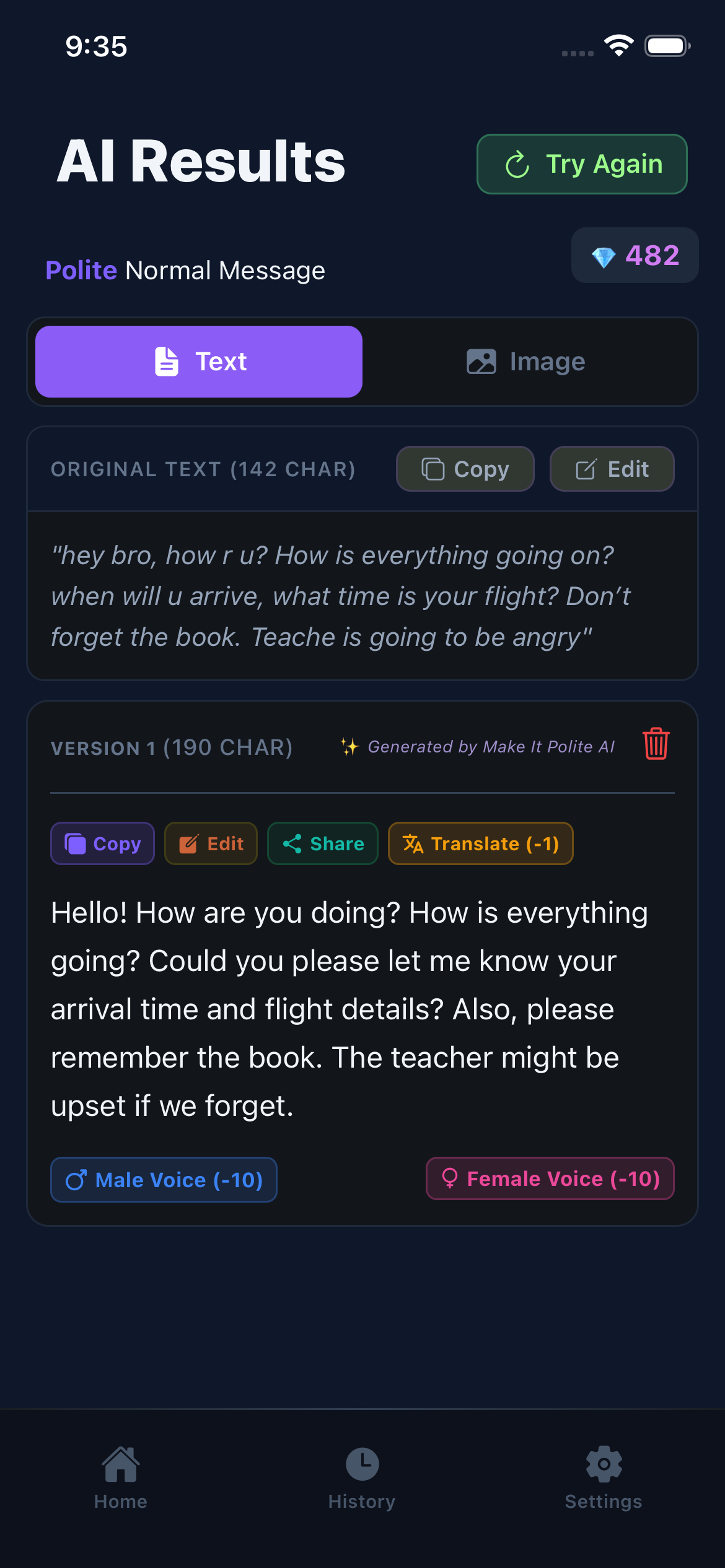
After generation, you'll see your original text and the AI-transformed version.

Results Screen

Results screen with action buttons

  • 📋 Copy – Copy text to clipboard
  • ✏️ Edit – Make manual changes
  • 📤 Share – Share to other apps
  • 🔄 Try Again – Generate a new variation (1 credit)
  • 🗑️ Delete – Remove this version
6

Create Image Cards

Turn your polished text into beautiful shareable images.

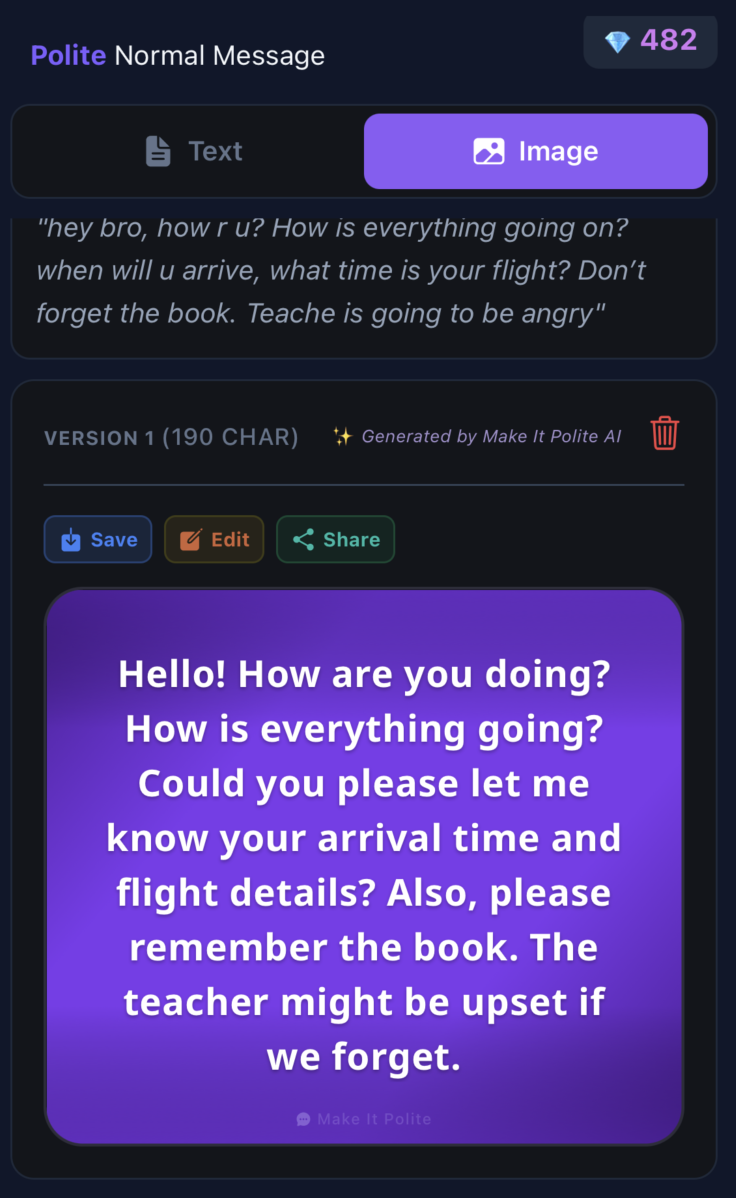
Image Card

Tap "Image" tab to see the card view

Tap Edit to customize:

  • 🎨 Background – Choose from gradient presets (Amethyst, Ocean, Emerald...)
  • 📝 Text Color – White, Ivory, Gold, and more
  • Remove Lines – Toggle quotation marks on/off
💡 Tip

Tap Save to download the image to your device. Perfect for sharing on social media!

7

Listen & Export Audio

Convert your text to speech and download as MP3.

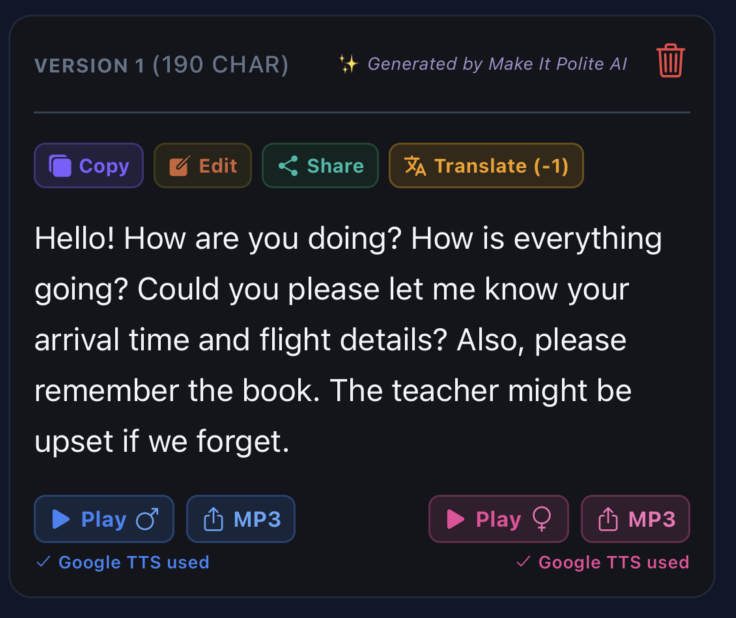
Voice Feature

Play and MP3 buttons appear after voice generation

Provider Cost Quality Tier
Google TTS 10 credits Natural voices All tiers
OpenAI TTS 20 credits HD, expressive Pro / Pro+
🔊 How It Works

1. Tap Male Voice or Female Voice button to generate audio (costs credits)
2. Tap Play to listen (free replay!)
3. Tap MP3 to save/share the audio file

8

Translate

Translate your polished text into 20+ languages.

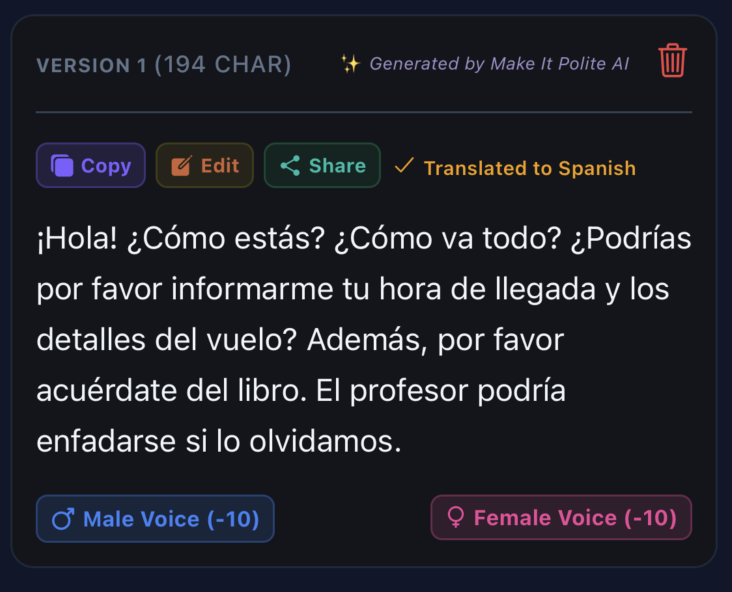
Translation

Translated text appears as a new version

  • 🌍 Tap Translate button on any result
  • 🎯 Set your target language in Settings → Translate To
  • 💎 Each translation costs 1 credit
💡 Languages Available

English, Spanish, French, German, Italian, Portuguese, Chinese, Japanese, Korean, Turkish, Arabic, Russian, and many more!

9

History & Favorites

Access your recent generations and saved favorites.

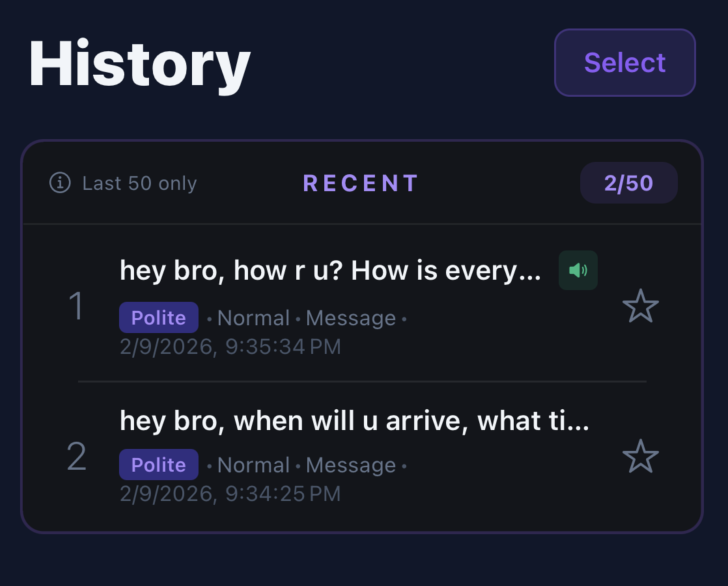
History Screen

History shows your last 50 generations

  • Star any result to add to Favorites
  • 🕐 Recent shows your last 50 entries
  • 🔊 Green speaker icon means audio is saved
  • 🗑️ Tap Select to delete multiple entries
10

Settings

Customize your experience and manage your account.

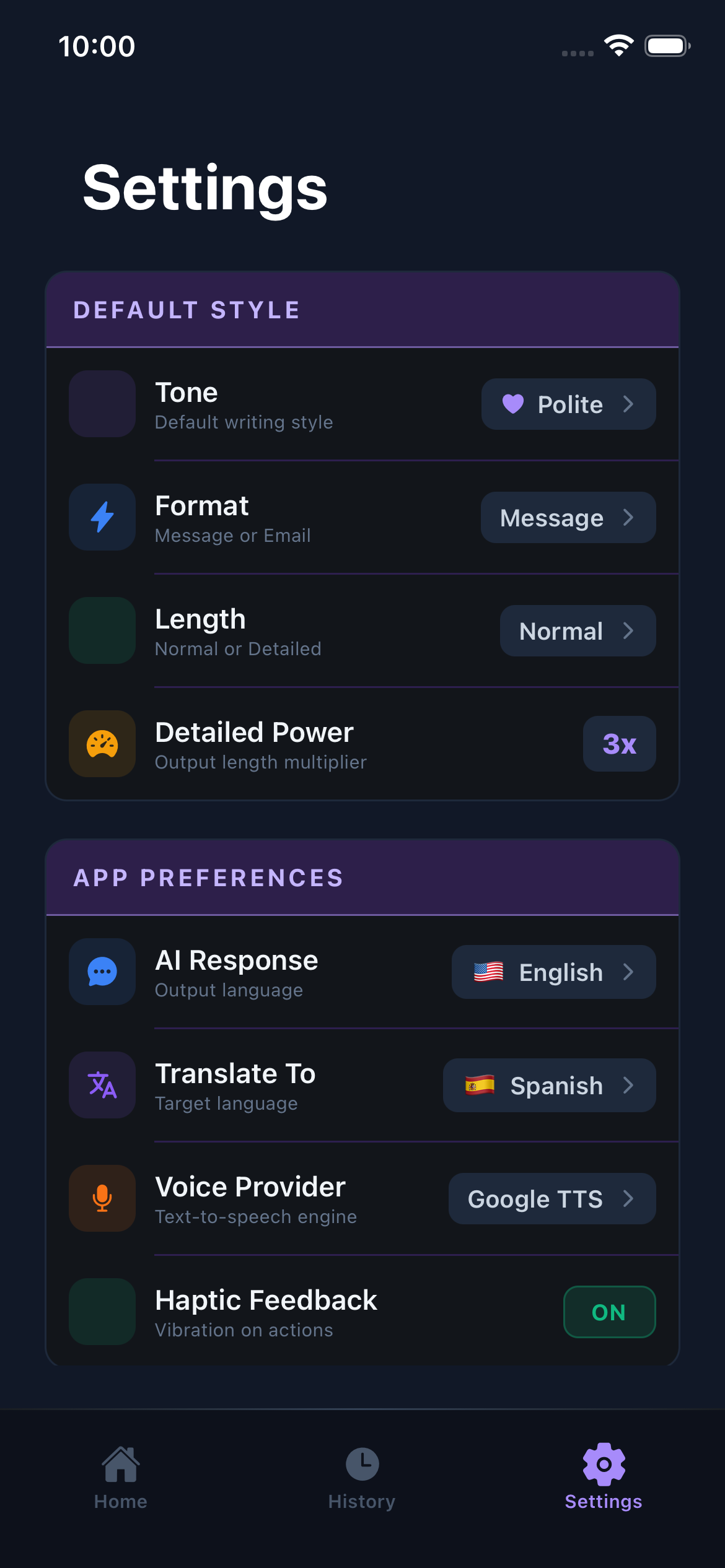
Settings Screen

Adjust your preferences in Settings

  • 👑 Membership – View plan, credits, upgrade
  • 🎨 Default Style – Set default tone, format, length
  • 🌐 AI Response – Output language (Auto-Detect or specific)
  • 🗣️ Voice Provider – Choose TTS engine
  • 📳 Haptic Feedback – Toggle vibration
⚡ Detailed Power

Found in Default Style section. Controls how much the AI expands your text when using "Detailed" length. Range: 1x (minimal) to 10x (maximum expansion).

Need More Help?

Contact us at support@makeitpolite.com

We typically respond within 24 hours.